Restore a screen's WiFi connection
If a screen has lost its WiFi connection — it is showing old content, or nothing is updating — you can reconnect it yourself from your phone using the Videri Ignite app. It takes a few minutes and you need to be standing near the screen.
Before you start
Install the Videri Ignite app if you do not already have it:
- Download for iPhone — Apple App Store
- Download for Android — Google Play
You will need an account and your WiFi password. If you do not have an account, email support@bartalknetwork.com and ask for access before you begin.
The app calls this flow "set up a new device" even though your screen is already installed. That is expected — reconnecting an existing screen uses the same steps as setting up a new one. You are not creating a duplicate.
1. Start the setup flow
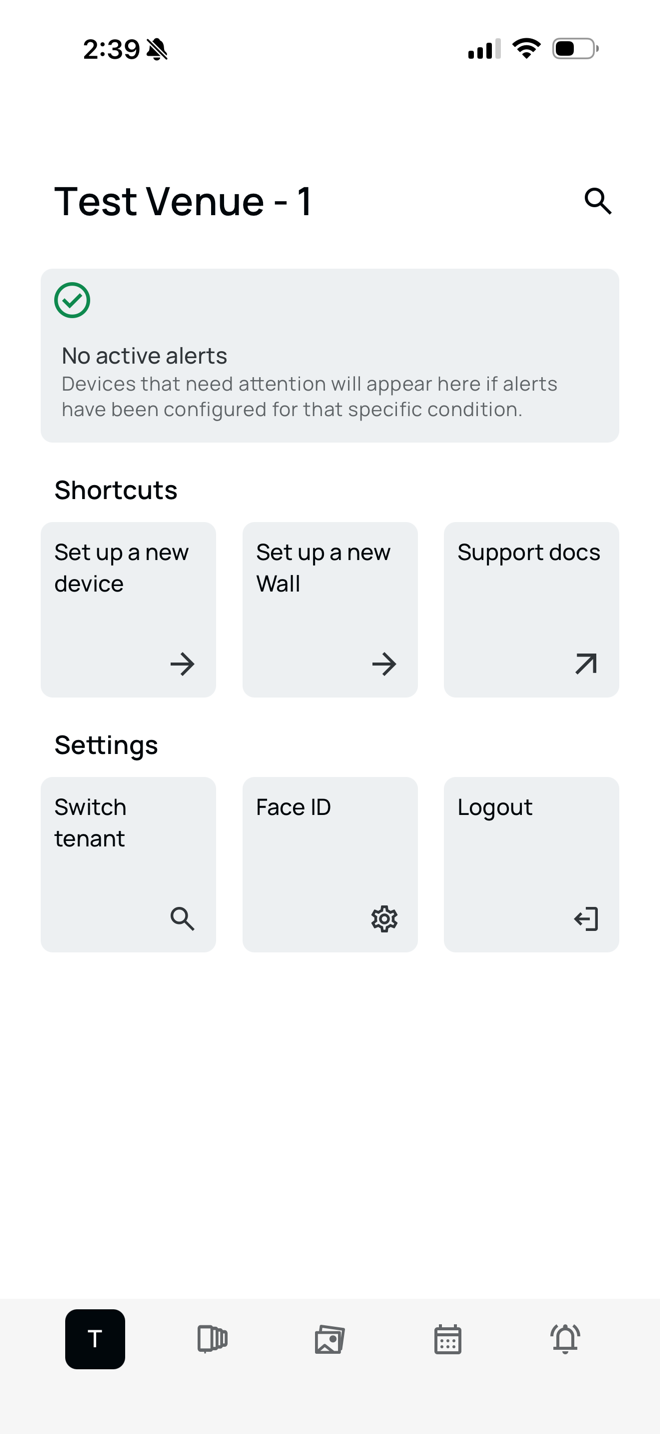
From the app's home screen, tap Set up a new device.
2. Tap Get Started
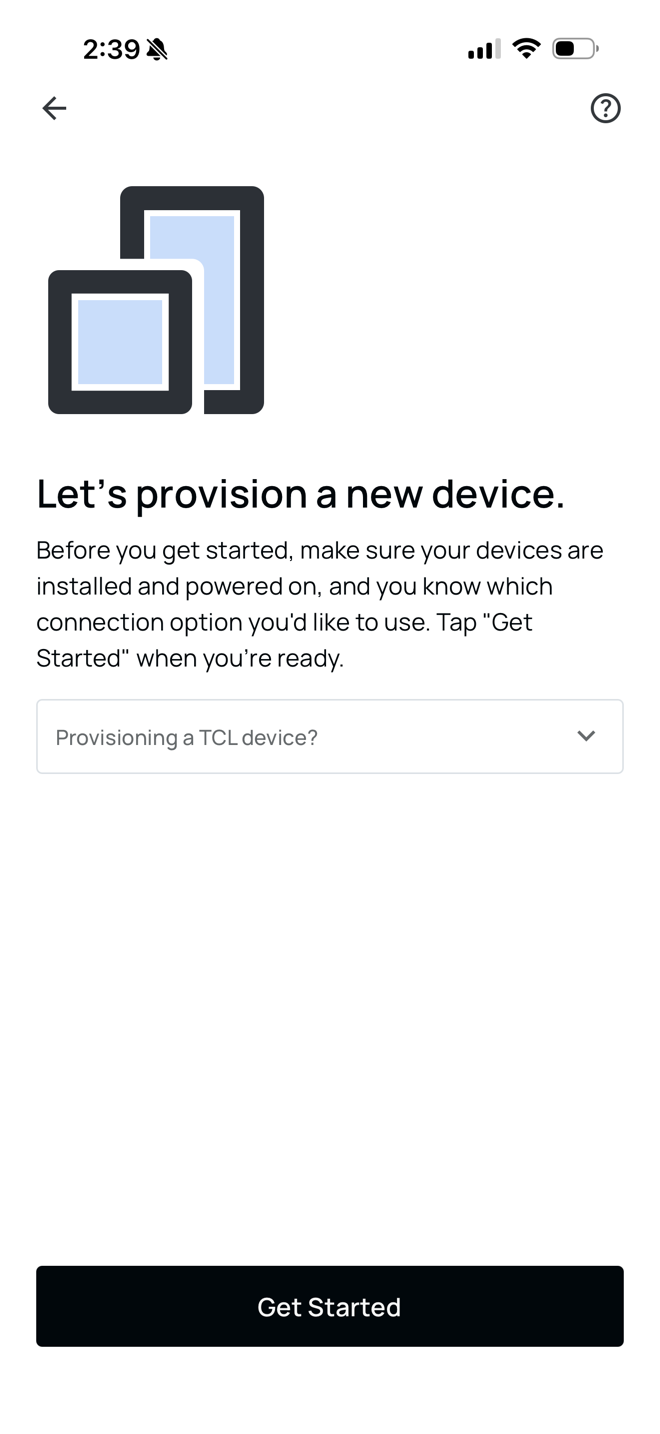
Check that the screen is powered on, then tap Get Started.
3. Pick your workspace
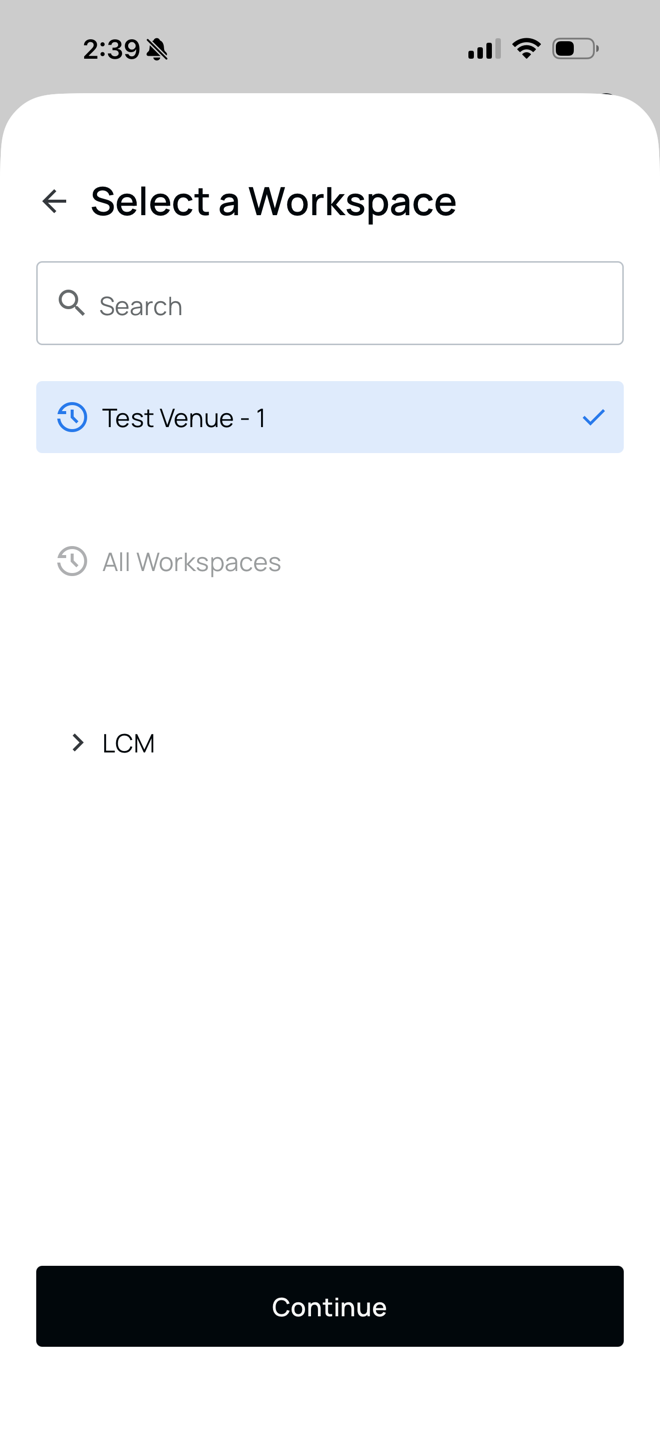
If you are prompted to select a workspace, choose the one for your venue and tap Continue. If this screen does not appear, carry on to the next step.
4. Choose to select devices
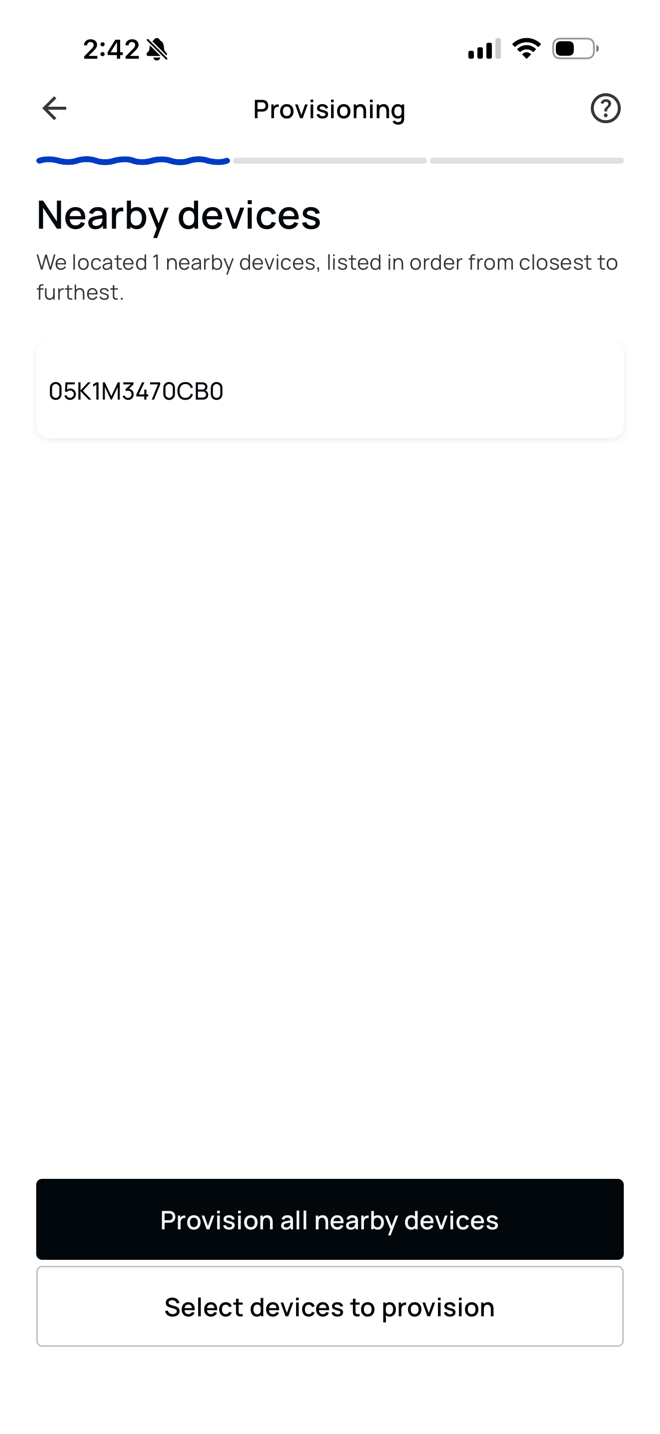
The app lists the screens it can find nearby. Tap Select devices to provision.
Do not tap Provision all nearby devices. That would reconfigure every screen in range, including ones that are working fine.
5. Pick the right screen
Tap the screen you want to reconnect, then tap Next. The app identifies screens by the last four characters of their serial number.
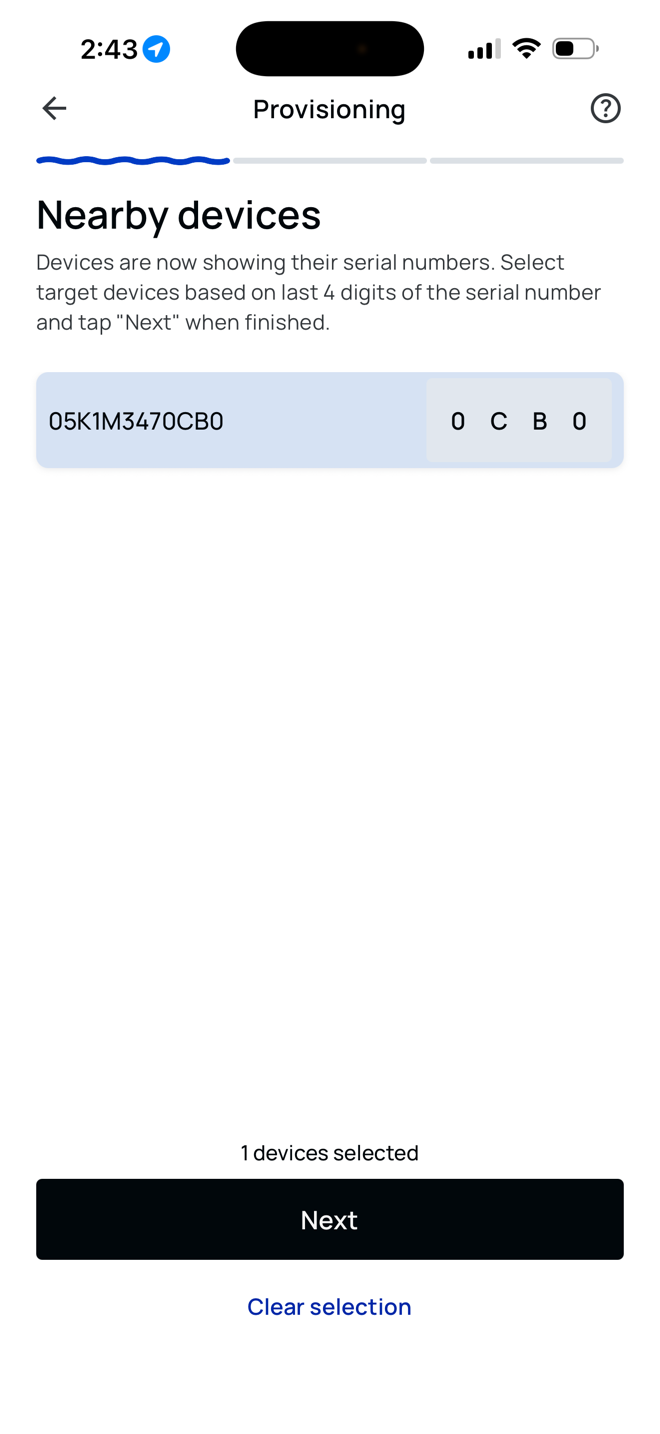
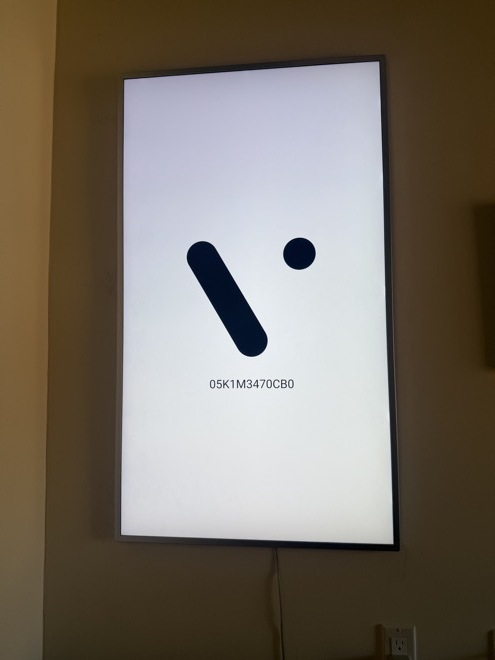
At this point the screen itself turns white and displays its serial number. Check that it matches the one you selected in the app — this is how you confirm you are working on the right screen before changing anything.
6. Choose your WiFi network
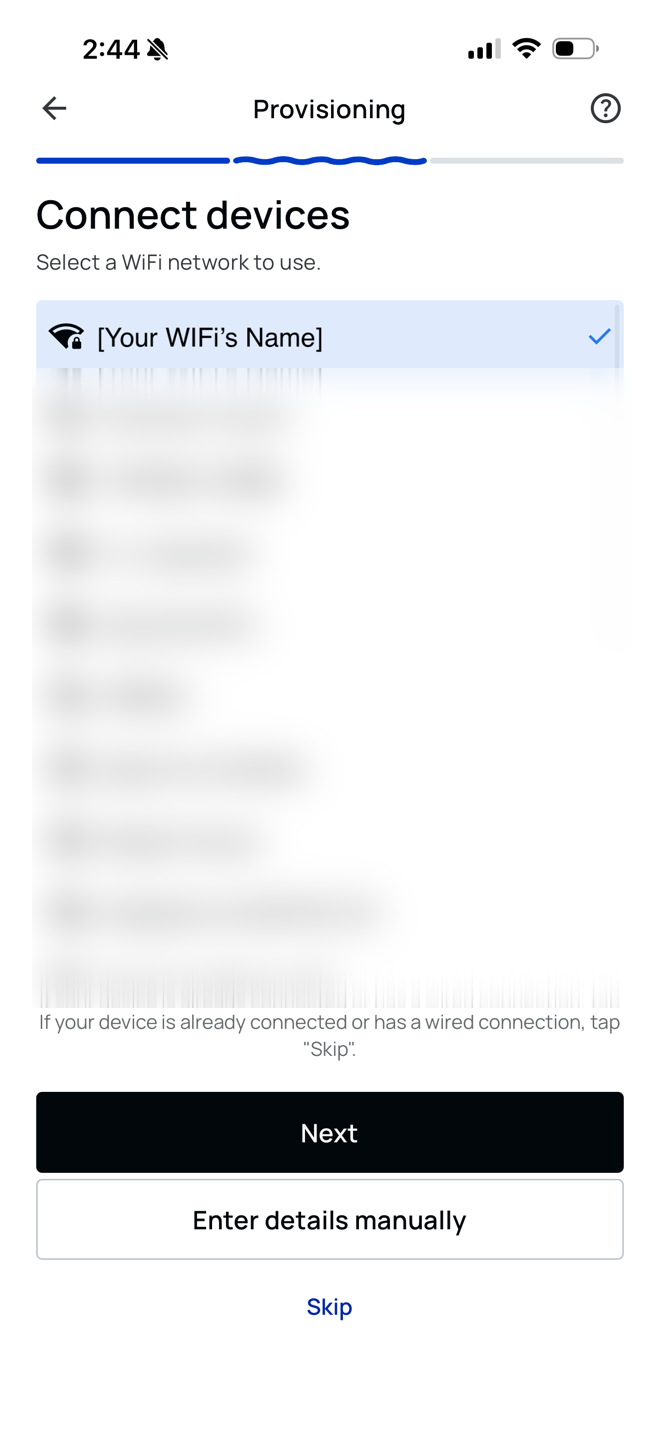
Select your venue's WiFi network from the list, then tap Next.
7. Enter the password
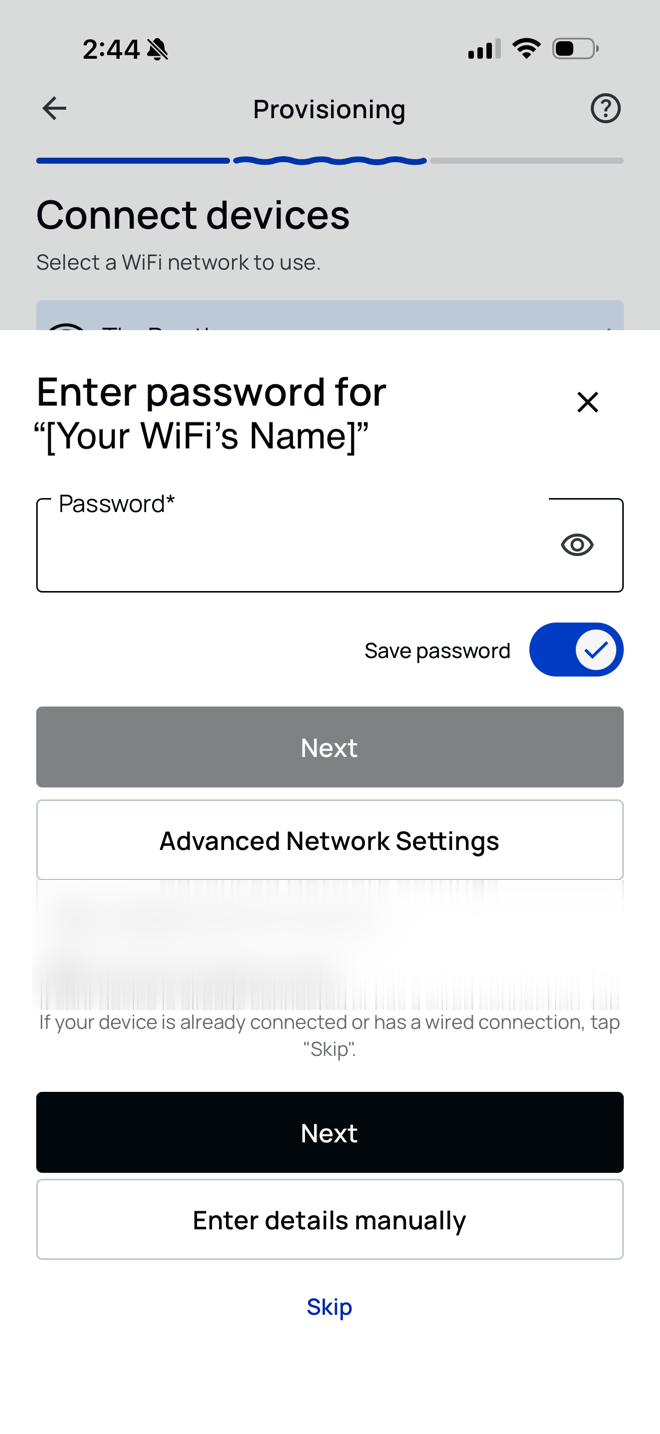
Type your WiFi password and tap Next.
8. Wait for confirmation
Wait for the success message, then tap Finish. You can ignore the optional configuration settings listed above the button.
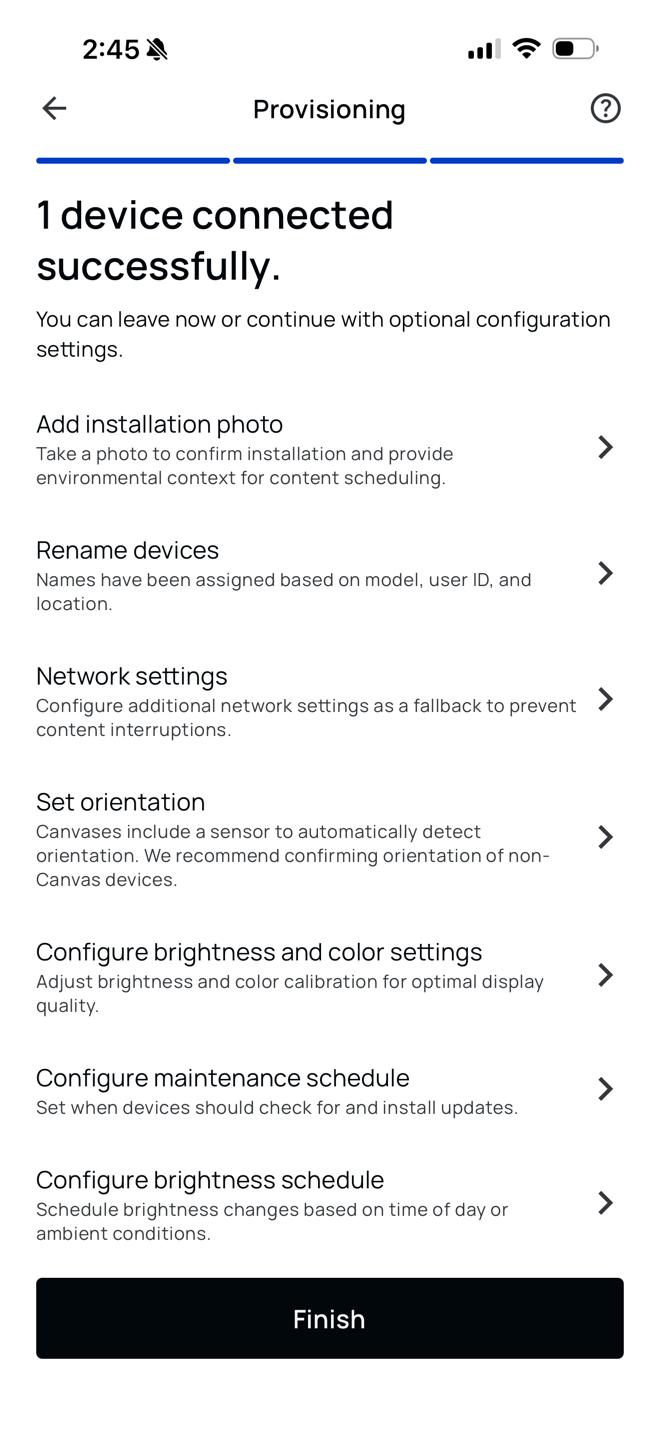
The screen should return to normal content within a few minutes.
If it does not work
If the screen does not reconnect, or it does not appear in the nearby devices list at all, see Troubleshooting or contact support@bartalknetwork.com or . Tell us the screen's serial number if you were able to read it.